Addons
Install, approve and manage addons that extend sxPanel with new panel pages, widgets, server routes and Discord commands.
Addons are self-contained packages that bolt extra functionality onto sxPanel — their own panel pages and dashboard widgets, HTTP routes, in-game Lua resources and Discord slash commands — without patching core. This page covers running and managing addons from the panel. To build one, see the Addon API.
Where addons live
Every folder under addons/ in your sxPanel data directory that contains an
addon.json manifest is an addon. sxPanel discovers them on boot, validates
each manifest, and lists them in Addons → Addon Manager.
A panel build can run up to 20 addons at once. The Addon Manager header
shows your current count (e.g. 2/20).
Addon Manager
Open Addons in the top navigation. Each discovered addon is shown as a card with its name, version, author, description, the permissions it requests, and lifecycle controls.
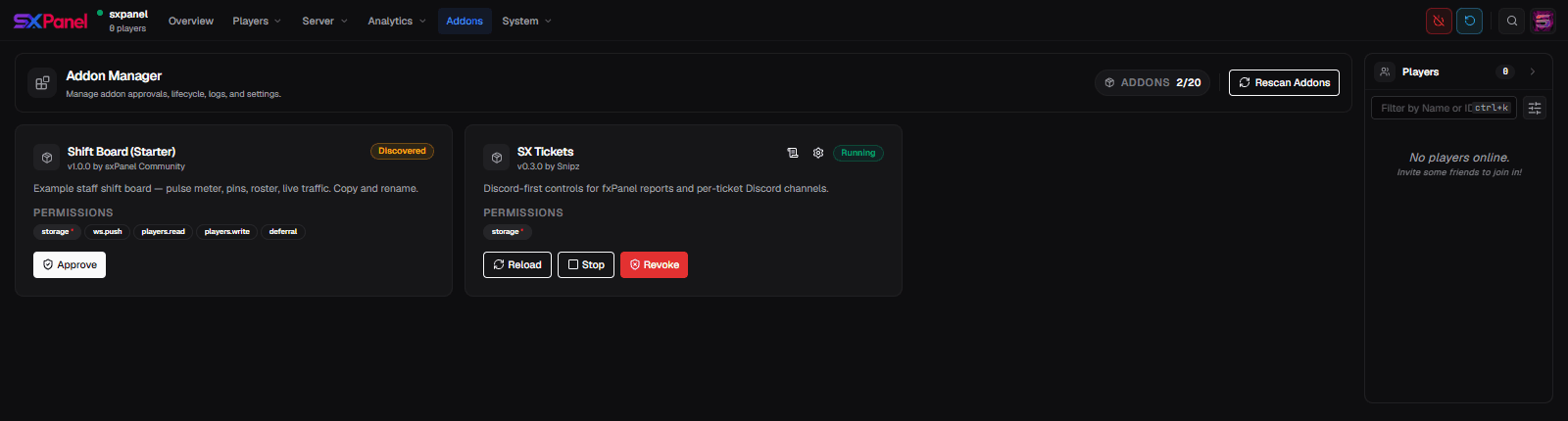
| Status | Meaning |
|---|---|
| Discovered | Found on disk but never approved. It is not running and none of its code has executed. Press Approve to review its permissions and start it. |
| Running | Approved and its server process is up. Routes, pages, widgets and Discord commands are live. |
| Stopped | Approved but not currently running — either stopped manually or halted after a crash. Use Reload to start it again. |
| Needs re-approval | The manifest changed to request new permissions since it was last approved. It stays stopped until an admin re-approves it. |
| Error | The manifest failed validation or the process failed to start. The reason is logged. |
Approving an addon
Approval is a security gate, not a formality. The dialog lists every permission the addon asks for (see the permission reference) and any admin permissions it wants to register.
Approval implies full trust
An approved addon runs as a normal Node process with the same OS-level access as sxPanel itself. Permissions only gate calls into core (storage, player tags, tickets, WebSocket push, deferral). Only approve addons you have read or trust.
Approved grants are stored in addon-config.json in your data directory —
not inside the addon's own folder — so re-copying or updating the addon
files does not silently re-grant anything.
Per-addon controls
Running addons expose:
- Reload — restart the addon's server process. Required after you change
its
server/code; panel-only changes just need a browser refresh. - Stop — shut the addon down without revoking it. It stays approved.
- Revoke — remove approval entirely. The addon drops back to Discovered and must be re-approved (and its permissions re-reviewed) to run again.
- Logs — the addon's stdout/stderr and lifecycle events.
- Settings — shown only if the addon ships a settings component.
Rescan Addons
Rescan Addons re-reads the addons/ directory without restarting the
panel — use it after dropping in a new addon folder so it shows up as
Discovered without a full FXServer restart.
Installing an addon
Copy the addon folder
Place the addon's folder inside addons/ in your sxPanel data directory, so
you have addons/<addon-id>/addon.json.
Rescan
In Addons → Addon Manager, press Rescan Addons. The addon appears with status Discovered.
Approve
Press Approve, review the requested permissions and admin permissions, and confirm. The addon's server process starts and its status becomes Running.
Grant admin access (if needed)
If the addon registered its own admin permissions, assign them to the relevant admins or presets in Server → Admins. See Permissions.
Panel pages & widgets
Addons can add their own entries to the sidebar and drop widgets onto the Overview dashboard. These appear automatically once the addon is Running; if an addon page declares a required permission, admins without it simply don't see the entry.
Updating & removing
- Update — replace the addon's files and press Reload (or Rescan then Reload). If the new manifest asks for more permissions it flips to Needs re-approval first.
- Remove — Revoke it in the Addon Manager, then delete its folder
from
addons/. Its approval entry inaddon-config.jsonis cleared on revoke.
Next steps
- Build your own: the Addon API documents the manifest, server SDK, panel SDK and Discord SDK, with a copy-paste starter template.
- Addons that react to server events can also use the plain Events API from a Lua resource.